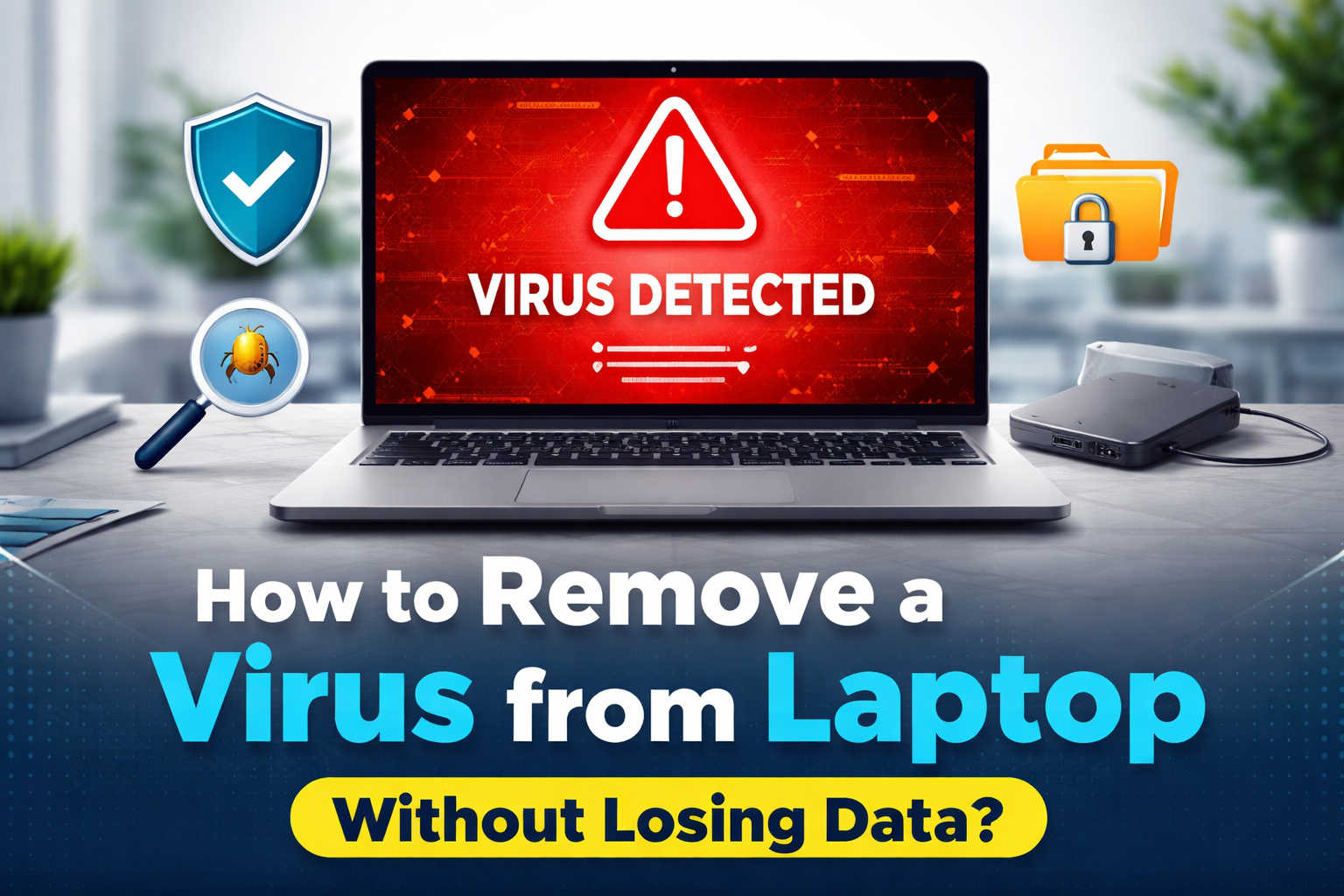
In today’s digital world, a virus infection can happen to anyone — whether it’s from downloading a file, clicking a suspicious link, or installing untrusted software. The good news? You can often remove a virus from laptop without losing your important data.
In this guide, we’ll walk you through safe and effective steps to clean your system while protecting your files.
How to Know If Your Laptop Has a Virus
If your laptop suddenly starts behaving differently, it may be infected. You might notice that it takes much longer to start, applications freeze frequently, or unusual pop-up ads appear on your screen. In some cases, your browser may redirect you to unfamiliar websites, or new programs may install automatically without your permission.
These signs usually indicate malware activity, and it’s important to take action as soon as possible before the issue gets worse.
Signs Your Laptop Has a Virus
Before removing a virus, it’s important to identify the symptoms:
- Your laptop suddenly becomes very slow
- Frequent pop-ups or ads appear
- Unknown programs install automatically
- Browser redirects to strange websites
- Files go missing or get encrypted
If you notice any of these, act immediately.
Step 1: Disconnect from the Internet
The first and most important step is to disconnect your laptop from the internet. This prevents the virus from communicating with external servers or spreading further into your system. It also reduces the risk of hackers accessing your personal or financial information.
This prevents:
- The virus from spreading
- Hackers from accessing your data
- Further damage to your system
Step 2: Backup Your Important Data
Before attempting to Remove a Virus from Laptop, it’s essential to back up your important files. This includes documents, photos, videos, and any work-related data that you cannot afford to lose. Use an external hard drive or a trusted cloud storage service for backup.
- Copy important documents, photos, and videos to an external hard drive or USB
- Avoid backing up suspicious or unknown files
- Use cloud storage if available
This ensures your data stays safe even if something goes wrong.
Step 3: Boot in Safe Mode
Restarting your laptop in Safe Mode allows the system to run with minimal programs and services. This makes it easier to detect and remove malicious software, as most viruses won’t actively run in this mode.
How to do it (Windows):
- Restart your laptop
- Press F8 / Shift + Restart
- Select Safe Mode with Networking
Step 4: Run a Full Antivirus Scan
Once in Safe Mode, run a full system scan using reliable antivirus software. A full scan is more thorough than a quick scan and helps detect hidden threats within your system.
- Run a full system scan (not quick scan)
- Remove or quarantine all detected threats
- Restart your laptop after cleaning
If you don’t have antivirus installed, install one from a trusted source before scanning.
Step 5: Remove Suspicious Programs
After removing the virus, it’s important to clean your system to remove any leftover files. Temporary files, cache data, and unused applications can slow down your laptop and may even contain traces of malware.
- Go to Control Panel → Programs
- Uninstall unknown or recently installed apps
- Check browser extensions and remove anything suspicious
Step 6: Clean Temporary Files
Temporary files are created by your system and applications to speed up processes, but over time they can pile up and take unnecessary space. In some cases, malware can also hide within these files, which is why cleaning them is an important step after removing a virus.
Viruses often hide in temporary files.
- Use Disk Cleanup or system cleaner tools
- Clear browser cache and cookies
This helps improve performance and removes leftover threats.
Step 7: Update Your System
Once your laptop is clean, updating your operating system and security software is crucial. Updates often include security patches that protect your device from new threats.
After cleaning:
- Update your operating system
- Update antivirus software
- Install latest security patches
This reduces chances of reinfection.
When You Should Seek Professional Help
Sometimes, viruses are too advanced to Remove a Virus from Laptop manually. Consider expert help if:
- Your files are encrypted (ransomware)
- The virus keeps coming back
- System won’t boot properly
- Sensitive data is involved
Final Thoughts
Remove a Virus from Laptop doesn’t always mean losing your data. With the right approach and timely action, you can safely clean your system and keep your important files protected. Many users searching for computer virus removal Osprey FL are often surprised to learn that most infections can be resolved without formatting the device.
Prevention, however, is always the best strategy. Avoid downloading files from unknown sources, keep your operating system updated, and use reliable antivirus protection to reduce the risk of future infections. Staying proactive can save you time, money, and stress in the long run.
However, prevention is always better than cure:
- Avoid downloading from unknown sources
- Keep your system updated
- Use reliable antivirus protection
Need Expert Help?
If you’re dealing with a serious infection or want a hassle-free solution, professional support is the safest option. Whether it’s advanced malware or system issues, expert technicians can ensure complete laptop virus removal Osprey FL without putting your data at risk.
Jeff Computer specializes in computer virus removal Osprey FL, offering fast, secure, and reliable services. Their team focuses on protecting your data while restoring your laptop’s performance, so you can get back to work without worry.